
CrashPlan User Guide

This is the User Guide for the HFS CrashPlan Backup Service. Note that there is extensive help for the CrashPlan product available on the CrashPlan site and where appropriate this guide links to that content while adding customised local content.

Expand All

CrashPlan is the recommended tool for securing backups of University data on personal, single-user computers like your desktop and laptop at work and at home. It is a GUI-based product that backs up to the Cloud with many benefits including

  • Frequent automated backups in the background (by default every 15 minutes)
  • Unlimited storage and no daily limits to how much you back up
  • You can back up multiple machines under one personal account
  • Keeps versions of files
  • No need for VPN. You can back up from home or anywhere else
  • Easy to use interface to select and exclude your data for backup
  • By default compression, encryption and deduplication of your backups both in transit and at rest
  • Fast restores
  • Restore your data from one machine to another, even cross platform (e.g. Windows to Mac)
  • Point-in-time restores
  • Multiple backup sets allowing you to back up some data more or less frequently than others
  • Easy configuration of your backup settings including frequency of background backups and number of versions held
  • Backups to local storage possible in addition to cloud backup.

The CrashPlan backup service is best suited to backing up single-user machines, or machines where a single user can take ownership of the backups, although in some circumstances it can be used on shared machines. (Note that where CrashPlan is not suitable the HFS Storage Protect Backup Service may offer a suitable alternative).
CrashPlan is fully supported by the vendor on reasonably recent versions of Windows, macOS, Ubuntu and Red Hat Enterprise Linux. Note however that there is a difference between fully supported and whether it works. In practice CrashPlan will continue to work, at least for a while, on older operating systems when they fall out of support although you may not get upgraded to the latest version of the software, and it will work on many more distributions of Linux. New operating system releases are usually supported within a month, but are unlikely to be supported immediately. If you are considering upgrading your operating system we suggest you check here whether it is yet supported.

CrashPlan publish an official list of supported operating systems which may be more up to date or detailed than the information below so do consult it.


Windows 11 versions are supported while the version is are supported by Microsoft. This means if you are more than a couple of years out of date in updates neither Windows nor CrashPlan will be supported though CrashPlan may well continue to work. CrashPlan is a desktop/laptop backup product so Windows Server versions are not supported.

CrashPlan is known to still work on Windows 10 and Windows 8.1 and the last supported version (which in the case of Windows 8.1 is branded as Code42) can be installed on these using the HFS Hub.

CrashPlan is supported on both Intel and Apple Silicon processors on systems running currently supported versions of macOS. Currently these are Tahoe, Sequoia and Sonoma.

CrashPlan is known to still work on Ventura, Monterey, Big Sur and Catalina and the last supported version can be installed on these using the HFS Hub.

CrashPlan is also known to still work on Mojave and High Sierra and the last supported version (which is branded as Code42) can be installed on these using the HFS Hub.

As always Linux is more complicated due to the enormous number and variety of distributions some of which are more similar to each other than others. In common with other vendors (including IBM with Storage Protect) CrashPlan officially support only certain 64-bit distributions which are Ubuntu long term support versions and Red Hat Enterprise Linux (RHEL), both of these for still supported versions of the distribution. Currently this is Ubuntu 22.04 and 24.04 and RHEL 8,  9 and 10. As regards other distributions:

  • Distributions that are based on RHEL such as CentOS, AlmaLinux, Rocky Linux are likely to work
  • Distributions based on Ubuntu such as Linux Mint, Zorin OS, Elementary OS are likely to work
  • We have found that it also works on various other distributions based on Debian or RPM packaging

If CrashPlan support is a priority for you you may wish to take that into account in your choice of distribution. If you find that CrashPlan will not work on your choice of distribution you may have better luck with Storage Protect. Although it has a similar limited official support list we find that in practice it does work on a wide range of newer and older distributions.

Getting set up to use CrashPlan requires installing the software on your computer, but it also requires creating an account linked to your Oxford Single Sign On on the CrashPlan service and authenticating the CrashPlan app with that login. The HFS Hub is provided to roll these steps into one single workflow and also to aid in troubleshooting if there are problems. The usual method for getting started with CrashPlan is therefore to install the HFS Hub and use that to install and set up CrashPlan.

Note that the recommended way to use CrashPlan is to have it installed with admin rights so it has access to all files. However it you do not have admin rights on your computer it is to install for your own user only. Both of these are supported by using the HFS Hub. Details are provided in the CrashPlan Quick Start Guide.

It is possible for a computer used by more than one person, e.g. a computer shared in a job share, to be backed up to two separate accounts. For information on this contact us at hfs@ox.ac.uk.

Some users may have had CrashPlan (and the HFS Hub) installed on their computer for them by IT staff. In this case before they can use it they will need to go through the steps of creating an account linked to their Oxford Single Sign On on the CrashPlan service and authenticating the CrashPlan app with that login. Instructions for doing this can be found on the our page on mass deployment.

IT staff wishing to bulk deploy CrashPlan should see our page on mass deployment. This also provides the information required if we ask you to install CrashPlan without using the HFS Hub.


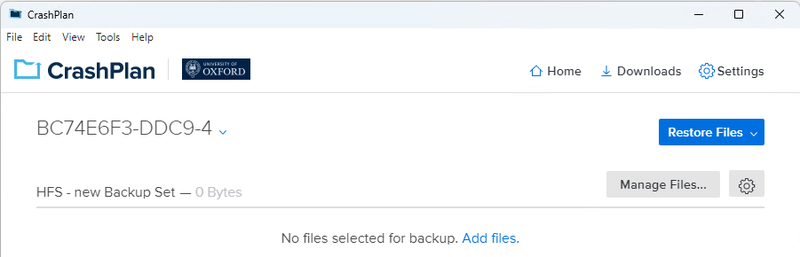
The initial CrashPlan screen on starting the app for the first time is displayed below.

HFS CrashPlan initial home screenl


If this is displaying directly after installation, then the text in blue 'Run backup now' will be replaced by highlighted text saying 'add files' to signify that no data has yet been selected for inclusion in the backup.

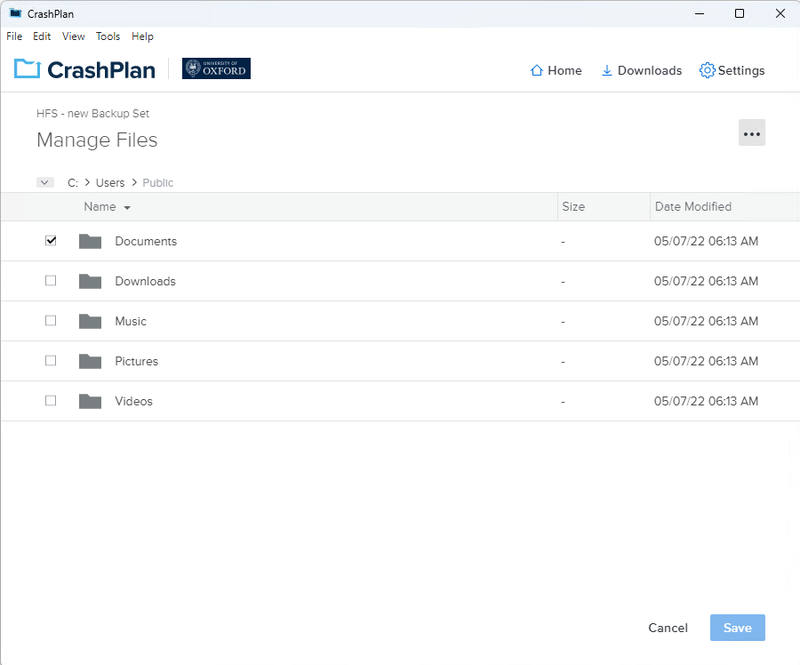
Click the Add Files link or the Manage Files button to select what files and folders you want backed up. This will take you to an explorer-like window where you can make and amend your backup selection, as below.

HFS CrashPlan manage files screen


You will see your existing selection of files/folders, if you have previously made any. Note that while there is no default inclusion of files, there are some default exclusions, as indicated by the red circle to the right. Additionally, some files are hidden from the default listing (usually system files and names beginning with dot on Windows and macOS). These can be exposed by clicking the three dot button in the upper right of the screen and selecting 'Show hidden files'.

Consider your selection carefully; your initial backup may take a considerable amount of time over a home broadband connection so it may be advisable to select your most important data first and then to subsequently revisit the Manage Files section to add incrementally more data to your backup set. Select files and folders via the toggle box to the left of the icon and once done choose Save (choosing Cancel will do just that and cancel your current unsaved selection).

Choosing the Save option will do one of two things. If you have only added files to your selection, it will take you back to the front screen. If you have deselected any files or folders, you will be asked to confirm that deselecting items will cause all backups of those items to be deleted.

Having added data to your backup set, you will see the front screen listing your backup set and a background scan reporting on the number of files and total amount of data that is candidate for backup. You can manually start the backup immediately or you can close the screen and let the backup run on schedule in the background (by default within the next 15 minutes). If your initial selection is larger than expected, you can pause the backups and/or click the 'Manage Files' button to amend your selection accordingly. 

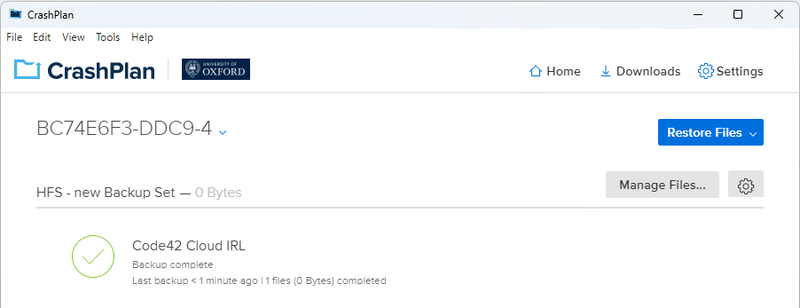
The home screen will now look like this

HFS CrashPlan home screen


Your local configuration items can be accessed by selecting the Settings wheel in either of the two locations. The Restore button will reveal a list of your machines from whose backups you may wish to restore. The main body typically displays information on your most recent and upcoming backup and may display either 'Run backup now' or 'add files', if no data has as yet been selected for backup inclusion. 

For more information on backing up see the following pages from CrashPlan:

Click the settings wheel to manage your local configuration options. Many by default will be suitable, but some you may wish to amend include:

  • Manage your bandwidth consumption (both backup and restore) by selecting the Network tab and changing the WAN option. Note 'None' means unlimited bandwidth and the scale runs down to 100kbps.
  • Manage when the background backups run via the 'Backup Sets' tab and changing the Backup Schedule option.
  • Via the same Backup Sets tab you can amend the number of versions you keep and the frequency of background backups (default is every 15 minutes). Tip: do not set the frequency too low, if you are editing large files - 15 minutes is a good default.
  • Via the Backup Sets tab, edit any files you wish to exclude from backups.

For more information on backing up see the following pages from CrashPlan:

Note: It is good practice to have anti-virus software installed and up to date on your machine before restoring data to it. This is especially pertinent if you are restoring files as a result of possible corruption and/or ransomware-like compromise. The University provides Sophos Endpoint Agent for this purpose and users should contact their local IT Support if they do not have access to this software.  

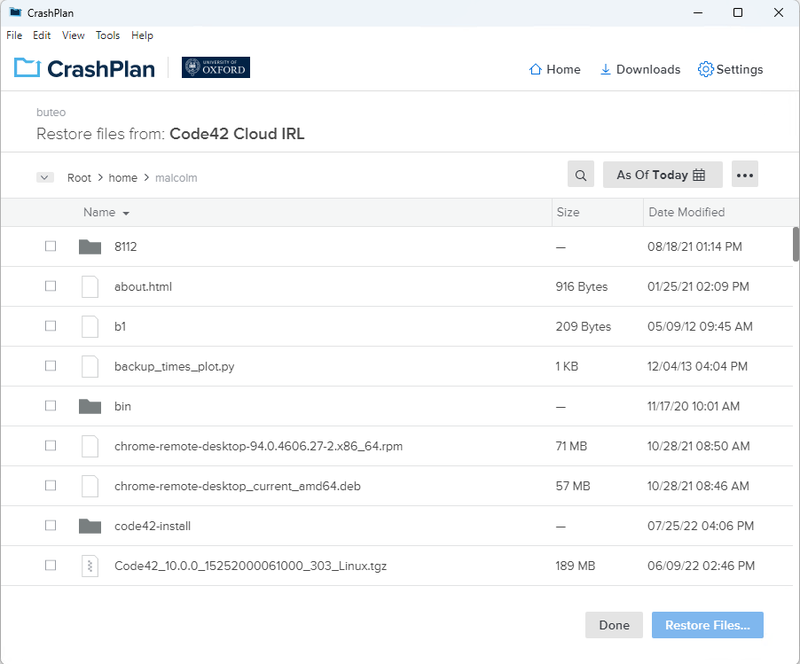
The restore window is accessed via the 'Restore Files' button on the front screen and is effectively the same explorer-type interface used for backup selection, with some appropriate differences.

HFS CrashPlan restore screen


File selection is via the same toggle box to the left of the file/folder icon. Remember that not all files are displayed: if you cannot see something you think should be there, click the three dot button in the upper right of the screen and select 'Show hidden files'. 

Holding the cursor over a specific file or folder will display the blue arrow and clock icons (see above).  Selecting the blue arrow will cause the immediate download of the most recent version of the file to the default download target. Selecting the clock icon will cause a screen listing all the versions of that file to display in reverse chronological order and allow a selection.

Once you have selected all the necessary files, click the 'Restore Files' button to display some restore options around destination folder on this machine for the restored data, overwrite options and varying file/folder permissions, and then click the 'Go' button. Perhaps counter-intuitively, clicking the 'Done' button next to the 'Restore Files' button cancels your restore selection and takes you back to the front screen.

Useful pages from CrashPlan

You can find information about your CrashPlan account in both the CrashPlan web console and the HFS Backup Services Portal. There is some overlap in the functionality of these - both display data about your computers and their backups. The CrashPlan web console also allows you to make some settings changes and to restore some files as downloads while the HFS Portal provides additional information to IT staff on the usage of CrashPlan in their units.

CrashPlan web console

You can open the CrashPlan web console by any of these methods

  • Open the CrashPlan App, click settings, scroll down to the bottom of the General tab and click on Manage account on the web...
  • Open the HFS Hub and click on the CrashPlan web console button (or select Open CrashPlan web console from the CrashPlan menu)
  • In your web browser navigate to https://console.eu5.cpg.crashplan.com/

Information on the CrashPlan web console can be found in these CrashPlan pages

HFS Portal

The HFS Portal can be found at https://portal.hfs.ox.ac.uk. Information on your usage of CrashPlan can be found on the CrashPlan page while IT support staff can find information on CrashPlan usage in their unit on the page for that unit.

You can uninstall CrashPlan by opening the HFS Hub and clicking the Uninstall button in the CrashPlan section.

Alternatively you can remove uninstall CrashPlan like any other application in Windows Settings > Apps >Installed Apps.

Note that when you remove CrashPlan using either of these methods some files are left behind which identify the computer account on the CrashPlan server. This is so that if you reinstall CrashPlan it will still be identified as the same machine. This makes it safe to uninstall and reinstall CrashPlan if you have problems. If you want top remove those files too then open the HFS Hub and select Remove configuration from the CrashPlan menu.

Once you have uninstalled CrashPlan, if you no longer want to use any HFS Backup services you can also remove the HFS Hub in Windows Settings > Apps >Installed Apps.

The recommended way to uninstall CrashPlan is to open the HFS Hub and click the Uninstall button in the CrashPlan section.

Note that when you remove CrashPlan some files are left behind which identify the computer account on the CrashPlan server. This is so that if you reinstall CrashPlan it will still be identified as the same machine. This makes it safe to uninstall and reinstall CrashPlan if you have problems. If you want top remove those files too then after you have uninstalled CrashPlan select Remove configuration from the CrashPlan menu in the HFS Hub.

Once you have uninstalled CrashPlan, if you no longer want to use any HFS Backup services you can also remove the HFS Hub by dragging the application to the trash bin.

The recommended way to uninstall CrashPlan is to open the HFS Hub and click the Uninstall button in the CrashPlan section.

Note that when you remove CrashPlan some files are left behind which identify the computer account on the CrashPlan server. This is so that if you reinstall CrashPlan it will still be identified as the same machine. This makes it safe to uninstall and reinstall CrashPlan if you have problems. If you want top remove those files too then open the HFS Hub and select Remove configuration from the CrashPlan menu.

Once you have uninstalled CrashPlan, if you no longer want to use any HFS Backup services you can also remove the HFS Hub with your package manager (remove the ox-hfs-hub package).

When your University card expires, or your card status changes to a status that no longer entitles you to use the service (e.g. when you retire), any computers you have backing up to CrashPlan will become deauthorised (they will no longer be allowed to backup or restore without signing in again). If your card is renewed late you will simply have to log in again using the CrashPlan app to continue using the service. Otherwise after a month your account will be deactivated and two months after that your backups will be deleted.

If you cannot find the information you require here please contact us at hfs@ox.ac.uk.

Get support


If you cannot find the solution you need here then we have other ways to get IT support

Get IT support

Submit a suggestion, compliment or complaint