
CrashPlan Quick Start Guide

This is the CrashPlan Quick Start Guide. It contains all the steps needed to start backing up your files to the CrashPlan service. For more details and more advanced information please see the CrashPlan User Guide.

To use the CrashPlan service

  • your University card status must be one of (for more details see University card and IT services entitlements)
    • Member of Congregation
    • University Staff
    • Academic Visitor
    • Departmental Staff
    • College Staff
    • Postgraduate
  • your computer must be running one of
    • Windows 11
    • macOS 11 or newer (Big Sur, Monterey, Ventura, Sonoma, Sequoia, Tahoe)
    • Ubuntu Linux, Red Hat Linux, or other distribution that uses Debian or rpm packaging

Expand All

Download the HFS Hub installer from the link below.

HFS Hub for Windows

When downloaded run the installer to install the HFS Hub. You will see the HFS Hub Setup Wizard
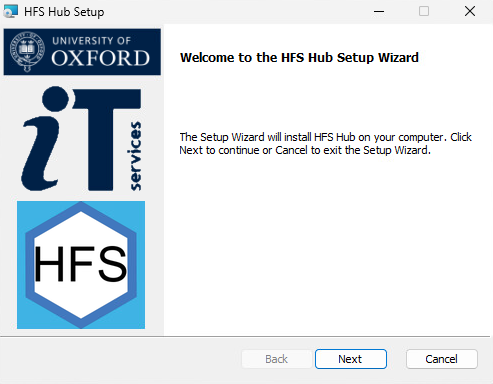
HFS Hub install wizard

When you click Next you will see the following screen
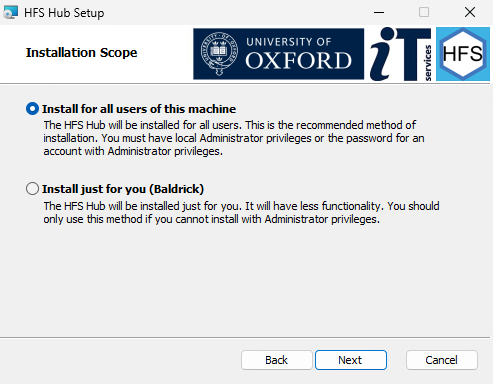
HFS Hub installer scope selection


Select the default option, Install for all users of this machine, unless you don't have admin rights or the password for an admin account on this computer. Only in those circumstances should you select Install just for you.

When you click Next installation will start. When it completes click Finish. The HFS Hub should then start. If it doesn't start it from the Start Menu.

Download the HFS Hub package from the link below.

HFS Hub for Mac

When downloaded run the installer to install the HFS Hub. You will see the installer welcome screen
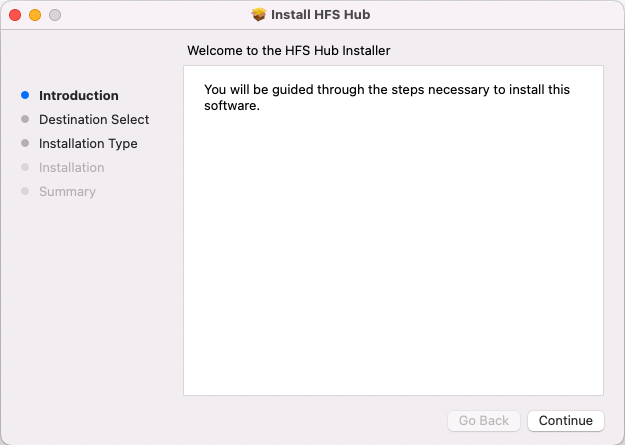
HFS Hub installer welcome screen


Click Continue to take you to the Installation Type screen.
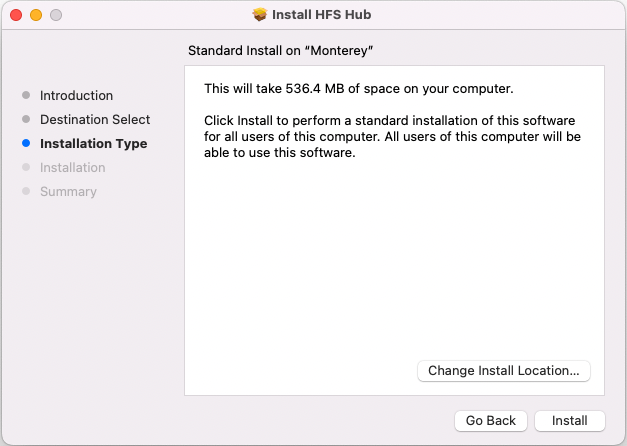
HFS Hub installation type


Here you should click the Install button unless you don't have admin rights or the password for an admin account on this computer. Only in those circumstances should you select Change Install Location... and at the next screen
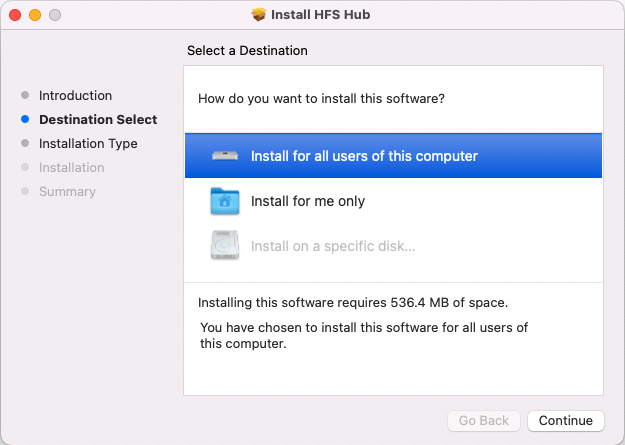
HFS Hub install destination

select Install for me only then Continue. You will be returned to the Installation type screen where you can press Install.

Unless you are installing for you only you will be prompted for your password or a password of an administrator account.

Once installation completes start the HFS Hub from the Launchpad or Finder.

Download the HFS Hub package from the appropriate link below.

HFS Hub for Debian based Linux (Ubuntu, Debian etc.)

HFS Hub for RPM based Linux (RHEL/Centos/Rocky Linux/AlmaLinux 8+, Fedora, OpenSUSE, etc.)

HFS Hub for RHEL/Centos/Scientific Linux 7

HFS Hub for SUSE Linux Enterprise Server 12

When downloaded install the package in the usual way for your system. e.g. with dpg, rpm, dnf, or a graphical tool.
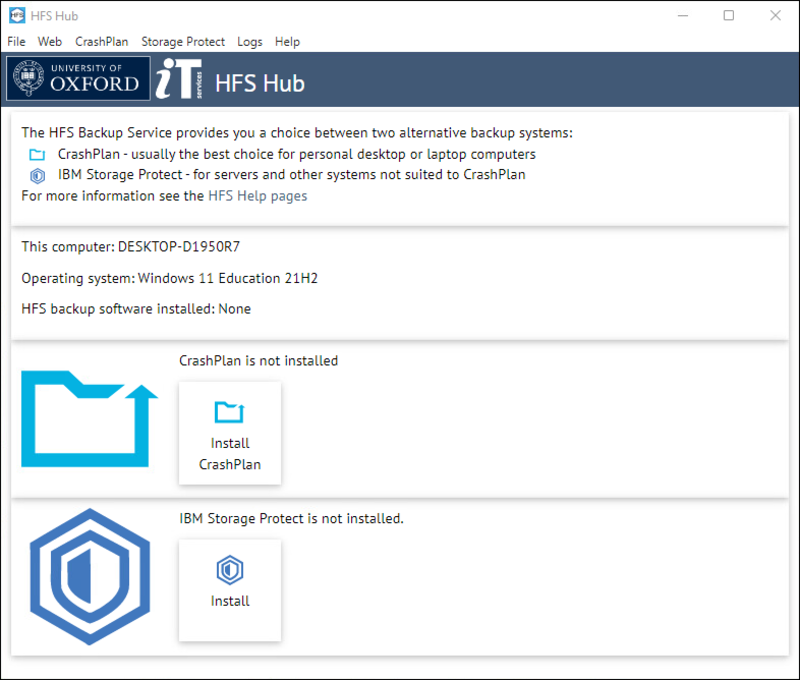
When you start the HFS Hub you will see the following screen

HFS Hub home screen

Click the Install CrashPlan button in the centre of the window. The next screen will inform you that you must log in with your SSO.

HFS Hub login prompt

Click the Login button and a browser window will open. If you have already logged into your browser you may need to do no more, but otherwise log in as you usually do. Once you are logged in go back to the HFS Hub which will now have created you a CrashPlan account (if you didn't already have one) and will ask you to confirm you want to start CrashPlan installation.

HFS Hub CrashPlan install prompt


Do this by clicking on the Start installation button.

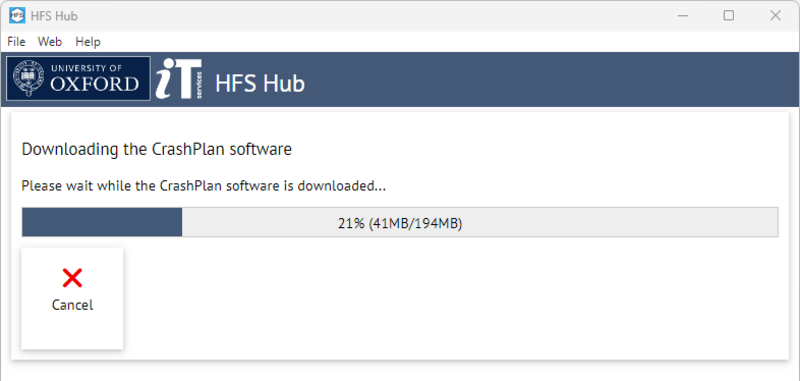
The correct version of the CrashPlan software for your computer will now be downloaded.

HFS Hub downloading CrashPlan

When the download completes this screen will change confirming the download has completed and will ask you to proceed to the next step. Click on the Next button and at the next screen the Start installation button.

HFS Hub CrashPlan download completed


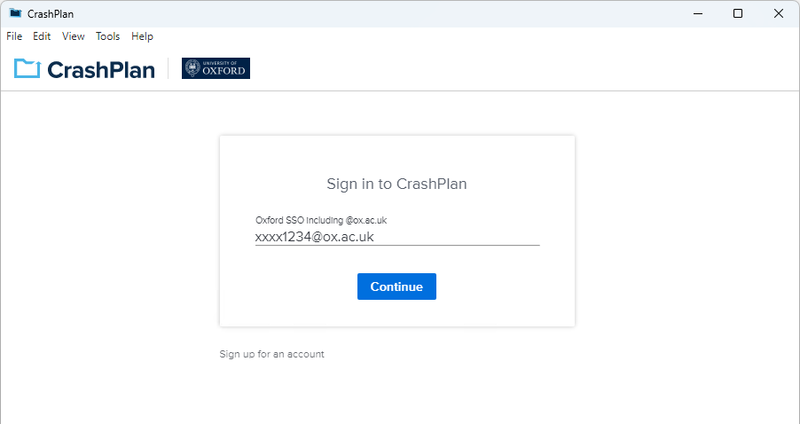
On Mac and Linux (and on Windows if you do not have admin rights) you will be prompted for credentials to run the CrashPlan installer. The installer will run and when it completes CrashPlan should start up (in rare circumstances it does not - if it has not started after a while start from the Start Menu/Launcher etc.). You will see the Sign in to CrashPlan screen:

HFS CrashPlan initial login


Usually your SSO will have been automatically filled in by the HFS Hub. If it has not been then enter it. 

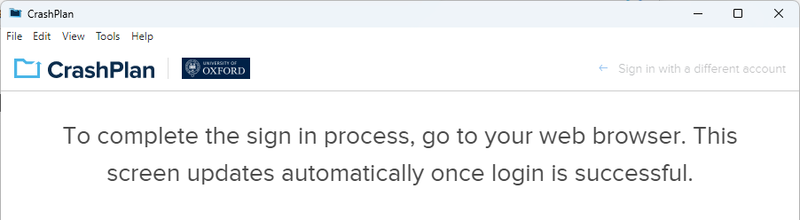
Now click 'Continue'. The CrashPlan app will now tell you to complete login to CrashPlan in your browser


HFS CrashPlan signing in


As you have already logged into the HFS Hub using your browser you will not need to enter your credentials again. Please be patient and allow the login process to complete.

Once you have logged in, if you have already used CrashPlan the first dialogue screen will now offer you the choice of registering this machine as a new device or as a replacement device for one of your other machines. You will normally choose the 'New Device' option. (If your current machine is indeed a new replacement for another machine that has failed and for which CrashPlan backups exist, choose the 'Replacement' option and follow the prompts.) If you are installing CrashPlan for the first time on your one and only device, you should not be prompted as above.

The CrashPlan home screen will now display and is ready for you to make a selection for backup (note: by default nothing is included). 

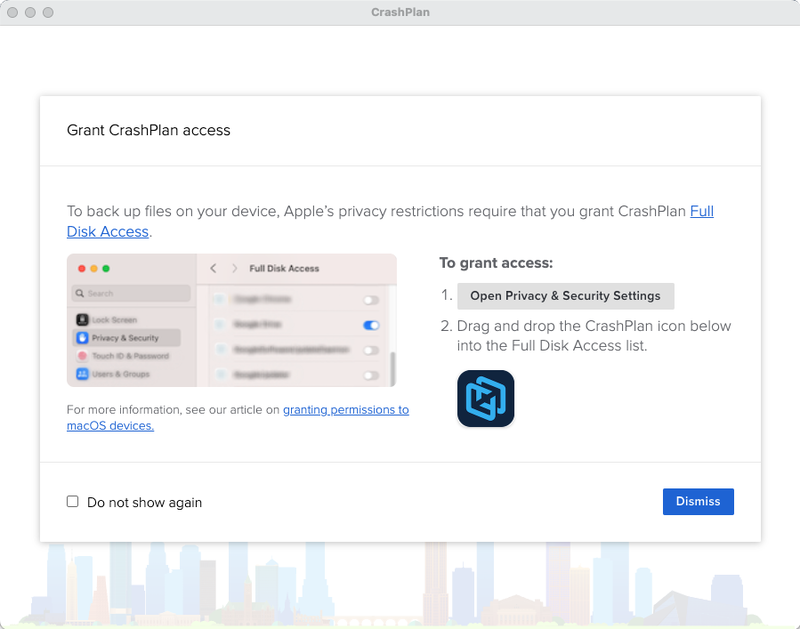
Note that on a Mac you may be interrupted by the following request to grant CrashPlan access to your personal files.

CrashPlan grant disk access request

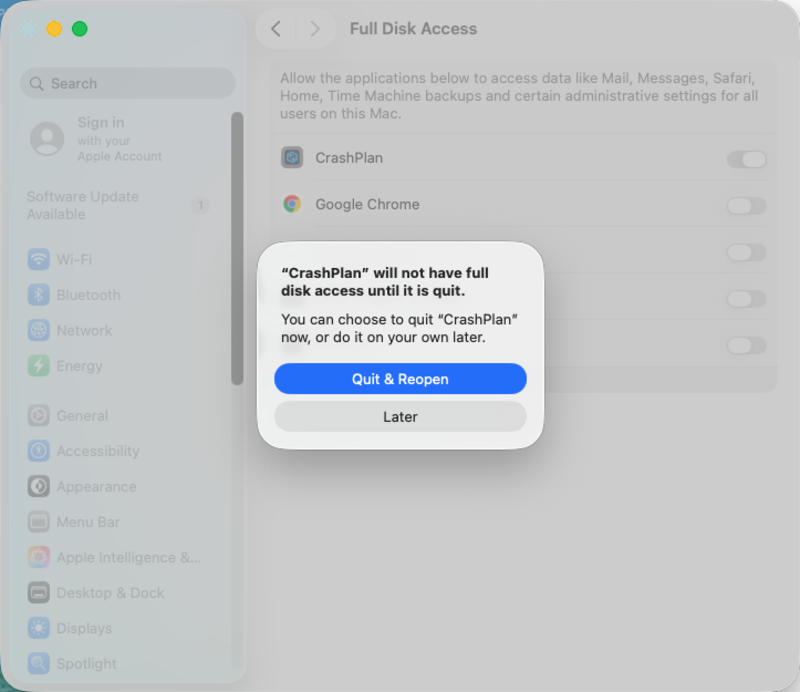
This is important. If you do not do this CrashPlan will not be able to back up all your files. Click the "Open Privacy & Security Settings" button. This should open System Settings at the Full Disk Access page. Drag the CrashPlan icon to this page. You will then see

Mac Full Disk Access settings

Quit and reopen CrashPlan. When it reopens continue from where you were. If you have problems with this, click the link to be taken to instructions on granting permissions to macOS devices.

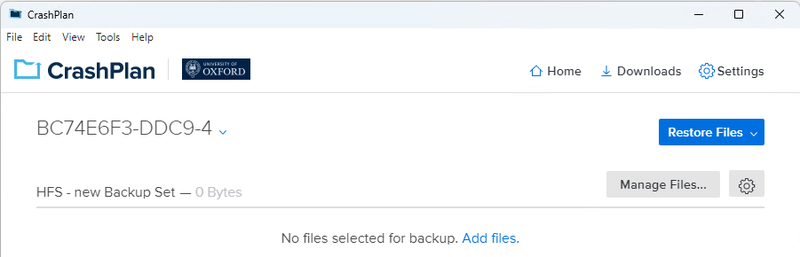
The initial CrashPlan screen on starting the app for the first time is displayed below.

HFS CrashPlan initial home screenl


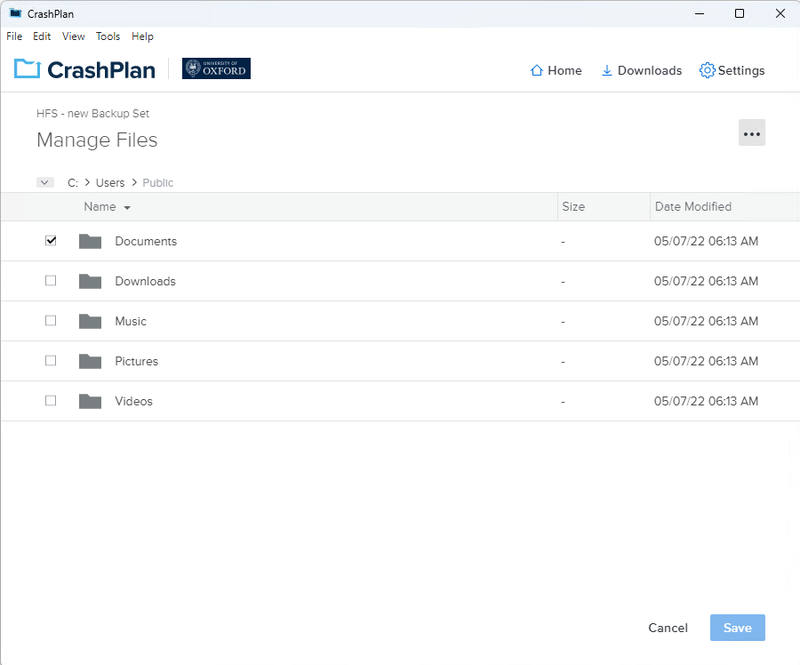
Click the Add Files link to select what files and folders you want backed up. This will take you to an explorer-like window where you can make and amend your backup selection, as below.

HFS CrashPlan manage files screen


Note that while there is no default inclusion of files, there are some default exclusions, as indicated by the red circle to the right. Additionally, some files are hidden from the default listing (usually system files and names beginning with dot on Windows and macOS). These can be exposed by clicking the three dot button in the upper right of the screen and selecting 'Show hidden files'.

Consider your selection carefully - your initial backup may take a considerable amount of time over a home broadband connection so it may be advisable to select your most important data first and then later add more files to your backup. Select files and folders via the toggle box to the left of the icon and once done choose Save.

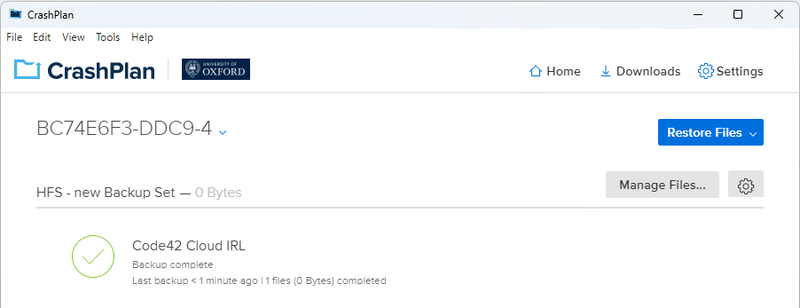
You will now see the home screen listing your backup set and a background scan reporting on the number of files and total amount of data that is candidate for backup. You can manually start the backup immediately or you can close the screen and let the backup run on schedule in the background (by default within the next 15 minutes).

The home screen will now look like this

HFS CrashPlan home screen


Application and backup settings can be changed by clicking the Settings wheel in either of the two locations. You can change what gets backed up by clicking "Manage Files..." and you can restore files from backup by clicking "Restore Files". For information on all these plus viewing information on your account in the CrashPlan Web Console and the HFS Portal see the CrashPlan User Guide.


Get support


If you cannot find the solution you need here then we have other ways to get IT support

Get IT support

Submit a suggestion, compliment or complaint